Birchboard

A clipboard history manager for macOS, built for people who work with code.

Hit a global hotkey anywhere, pick an entry, paste. Along the way, pretty-print JSON, decode a JWT, flip a timestamp, hash a string, browse nested data as a tree, or drop in a snippet with {clipboard} / {date} tokens. All keyboard-first, local-only, and free.

macOS 14 (Sonoma) or later · Apple Silicon / Intel · free · open source under MIT

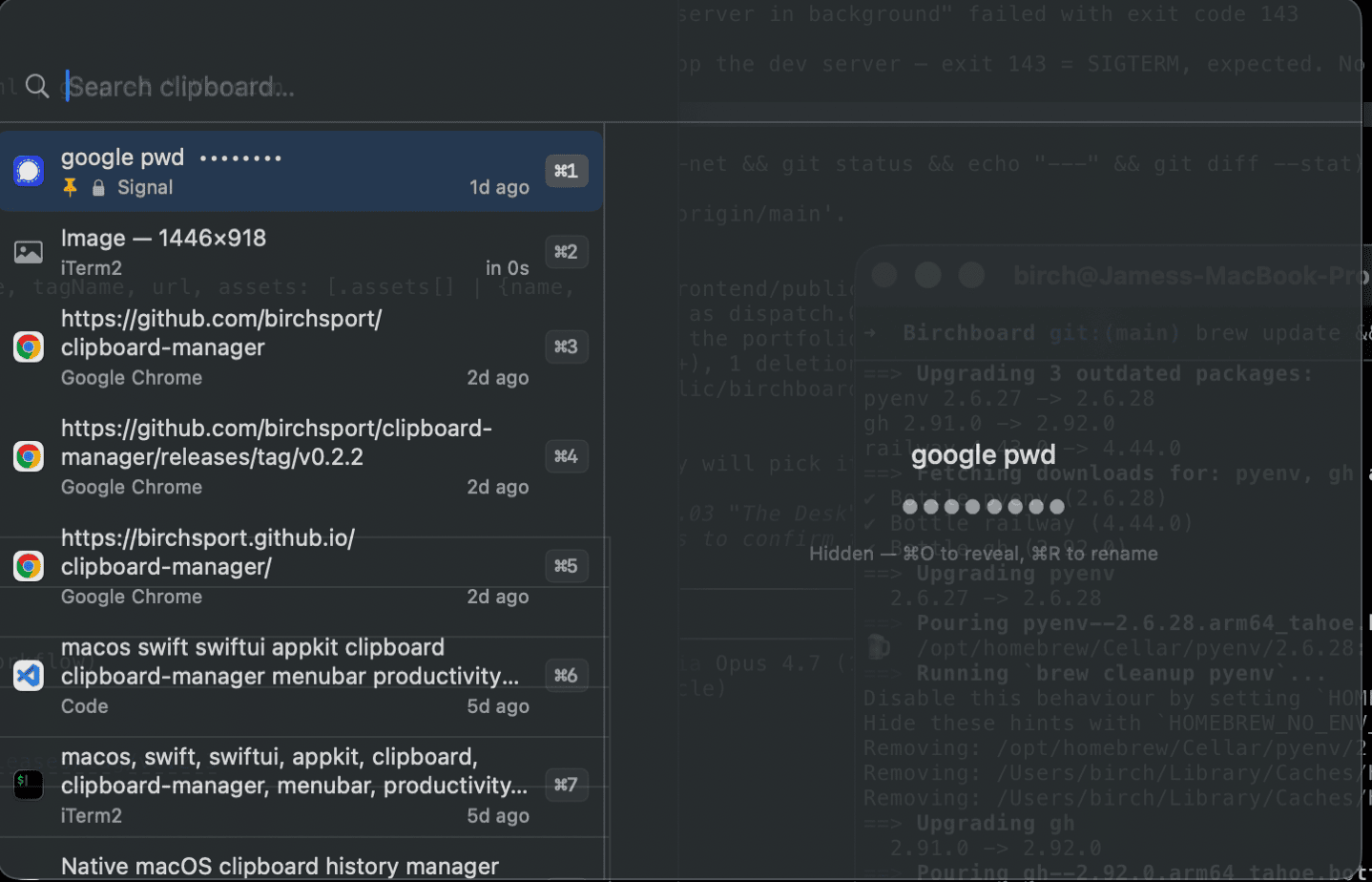
Birchboard panel showing a searchable clipboard history with syntax-highlighted code entries and a right-hand preview pane.

At a glance

Features

Capture

Text, RTF, images, and file references, with the source app remembered.

  • Ignore list (Settings → Privacy) skips capture while password-manager apps are frontmost; ships with 1Password 7/8, Bitwarden, Keychain Access, Apple Passwords, LastPass, and KeePassXC as defaults.
  • Respects the org.nspasteboard.ConcealedType / TransientType convention.
  • Retention sweeps (count + age) run on launch and hourly. Pinned entries never expire.

Browsing

  • Fuzzy search as you type.
  • Type-keyword search — image finds image entries, file finds file references, 400x300 finds that specific image.
  • ⌘1⌘9 quick-pastes the Nth visible entry; the first nine rows show their shortcut inline.
  • ⇧Space (or -click) gathers rows into a batch, pastes them joined by a configurable delimiter — see Multi-paste below.
  • Code rows get a language chip. 17 detected: JSON, YAML, XML, HTML, Markdown, Swift, Java, JavaScript, TypeScript, Python, Go, Rust, Ruby, SQL, Shell, Dockerfile, CSS.
  • ⌘P to pin, ⌘⌫ to delete.

Multi-paste

Stitch together a handful of clipboard entries — IDs, URLs, names, scratch values — and paste them in one shot, joined by whatever delimiter you like.

  • ⇧Space toggles the focused row in a batch; a numbered chip and accent bar mark the selected rows in insertion order.
  • ⇧↑ / ⇧↓ extends the batch contiguously, like Finder. -click is the mouse equivalent of ⇧Space.
  • pastes the batch joined by the delimiter. Default is newline; configurable in Settings → General → Multi-select with \n / \t / \\ escapes.
  • ⌘1⌘9 still pastes that single row directly, ignoring an active batch — keeps the quick-paste muscle memory intact.
  • Image and obfuscated rows beep on toggle: the first has no plain-text payload, the second would leak its value through concatenation.

Previews & Quick Look

  • Live preview pane with plain monospaced text — kept lightweight so arrowing through code-heavy history stays snappy.
  • ⌘Y pops a full-panel Quick Look overlay with syntax highlighting — full-size images, scrollable code, file paths with icons.
  • JSON, YAML, and XML entries get a collapsible tree view instead of flat text: keys, typed values, array indices, XML elements, attributes, and text nodes, all coloured consistently. Each subtree's expansion is independent.

⌘T — Transforms

Rewrite the clipboard payload before it pastes. Inapplicable transforms are hidden upfront; fuzzy-filter by name.

  • JSON — pretty-print, minify.
  • JSON ↔ YAML — auto-direction.
  • JWT — decode to pretty-printed header + payload.
  • Timestamp — Unix ↔ ISO 8601 (10- or 13-digit input).
  • Hashes — SHA-256, SHA-1, MD5.
  • Number bases — dec / hex / bin simultaneously.
  • Query string ↔ JSON.
  • Encoding — Base64, URL.
  • Case — UPPER / lower / Title / camel / snake / kebab.
  • Trim — whole-string, per-line trailing, or per-line both ends.
  • Strip — ANSI escape codes, HTML tags.
  • Extract — all URLs, all email addresses.

⌘S — Snippets

Author canned text in Settings → Snippets; expand placeholders at paste time.

{clipboard}
Current pasteboard text.
{date} · {date:FMT}
Today, formatted with any DateFormatter template.
{time} · {time:FMT}
Now, same.
{uuid}
A fresh UUID each expansion.
{newline} · {tab}
Literal escapes.
{{ · }}
Literal braces.

Unknown tokens pass through unchanged.

⌘K — Actions

Type-specific shortcuts for the selected entry. Only applicable actions show up.

  • URL → Open in Browser, Paste as Markdown link
  • File(s) → Reveal in Finder, Open
  • Email → Compose Mail to…
  • Phone → Call with FaceTime
  • Hex color → Paste as rgb(), hsl()

⌘O — Obfuscate

Pin a password you paste daily, then mark it obfuscated for screen-share safety. The list, preview, and Quick Look all show 🔒 nickname •••••••• instead of the value — still pastes the real thing.

  • An optional nickname (e.g. aws-prod) is shown in place of the value; ⌘R re-edits it later.
  • Search hits the nickname only — typing the underlying text won't reveal the row.
  • Transforms, snippets, actions, and Quick Look are blocked while obfuscated, so the payload is never lexed or rendered.
  • Obfuscated rows are exempt from retention sweeps, like pinned ones. Pin and obfuscate are independent flags.

Preferences

  • Retention — cap history by count (default 1000) and age (default 90 days); pinned entries exempt.
  • Panel opacity slider (30–100%).
  • "Restore previous clipboard after paste" so using history doesn't disturb your current copy.
  • Launch at login.
  • Custom global hotkey via the standard shortcut recorder.

Updates

Install once; stay current automatically.

  • Background check every 24 hours via Sparkle.
  • Manual Check for Updates… in the menu bar and in Settings → General.
  • Every update is EdDSA-signed and notarized by Apple; Gatekeeper never blocks an installed user.
  • Feed hosted on GitHub Pages — no extra infrastructure, no telemetry.

Privacy & storage

  • Everything local. No cloud, no analytics, no telemetry.
  • SQLite + content-addressed image blobs at ~/Library/Application Support/Birchboard/.
  • Clear unpinned / clear all from Settings → Privacy.
  • Export / Import — the whole history (images included) as a single JSON file. Re-importing is dedup-safe.

Keyboard

While the panel is open:

⌘⇧VOpen / close the panel
Navigate entries
Paste selected entry
⇧⏎Paste as plain text
⌘1⌘9Quick-paste Nth visible entry (ignores multi-select)
⇧⌘1⇧⌘9Quick-paste Nth as plain text
⇧SpaceAdd / remove the selected row from a multi-paste batch
⇧↑ ⇧↓Extend the batch contiguously
-clickToggle a row in the batch (mouse equivalent of ⇧Space)
⌘TTransform picker
⌘SSnippet picker
⌘KAction picker
⌘YQuick Look preview overlay
⌘PPin / unpin selected
⌘OObfuscate / un-obfuscate selected (hide content for screen-share)
⌘RRename obfuscated entry's nickname
⌘⌫Delete selected
EscClose overlay or dismiss panel

Install

  1. Download the latest DMG from the Releases page.
  2. Drag Birchboard to /Applications.
  3. Launch. The first time you trigger a paste, macOS will prompt for Accessibility access — grant it in System Settings → Privacy & Security → Accessibility. This is required so Birchboard can synthesise ⌘V in the app you had focused before.

Birchboard is a background agent — no Dock icon. Look for the clipboard icon in the menu bar. Right-click it for Settings, About, or Quit.

Future versions install themselves — Birchboard checks for updates in the background, or on demand via Check for Updates…. You only download a DMG once.

Prefer to build from source? Clone the repo and follow the README.